We’ve updated the internal team permissions for Staff vs. Admin users.
Staff users can’t access the Billing App, invoices, products, or the Billing tabs on client CRM profiles
QuickBooks and Xero integrations are hidden from Staff users
Billing-related notifications are turned off for Staff users
Admin users retain full access to everything. Contracts and all other features currently remain unchanged—Staff users can still access them. We’re working toward fully customizable roles in the future; this is a first step.
You can review the full internal user permissions in our Guide.
Changing contact emails from CRM
You and your team can now edit the email addresses of clients who log in via email and password in the CRM via "Edit info" option (triple dot menu).
Note: you cannot change contact emails if they log in via OAuth/SSO methods such as Google (only the client can change their email via Account Settings).
If you want to change the email on behalf of a client who is logged in via SSO, you can ask the client to disconnect their OAuth and set up email/password first or contact support@assembly.com.
2025 Year in Review
Companies will say every year is the “big year.” But 2025 was really, actually a big year for Assembly, and for customers like you who trust us to elevate your clients' experience.
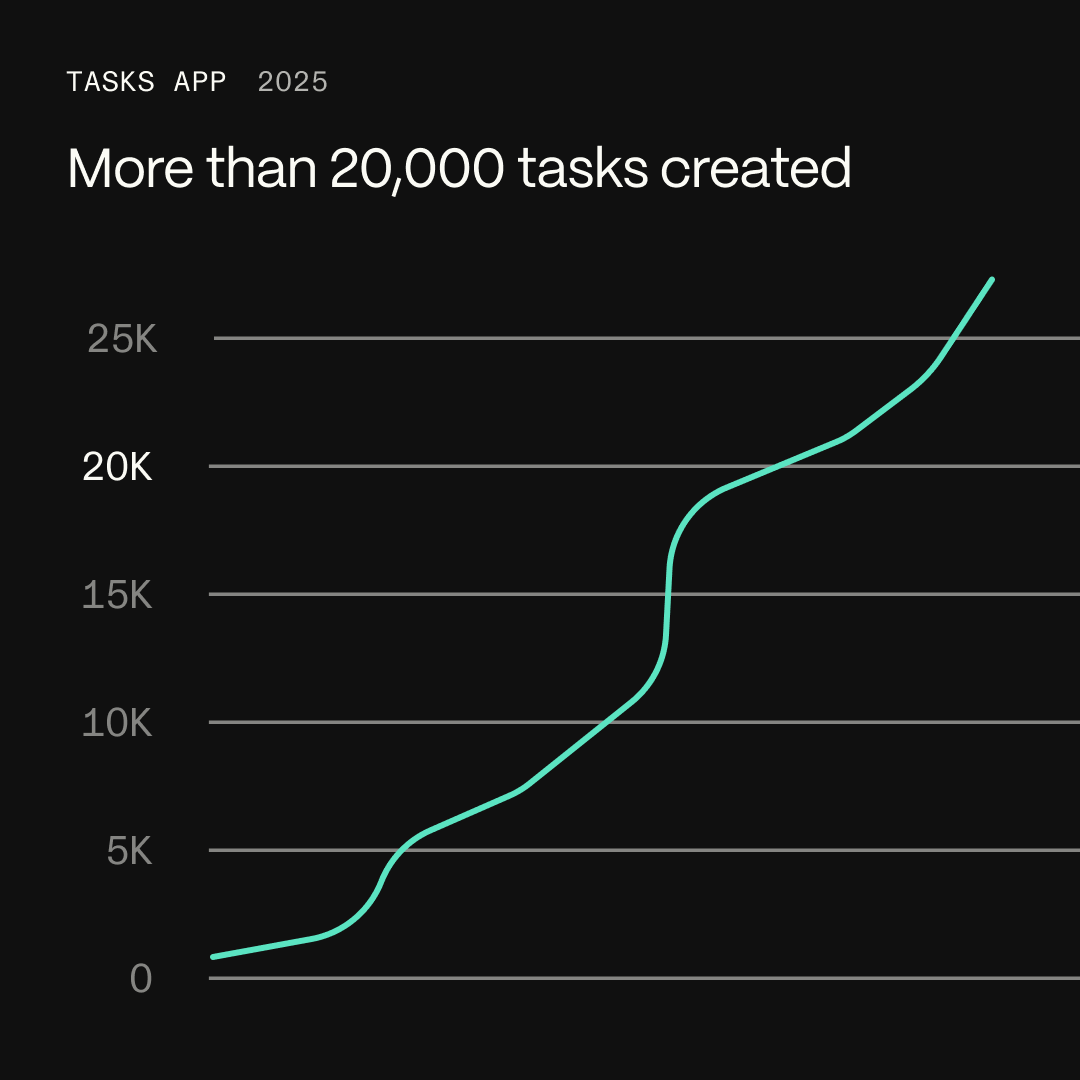
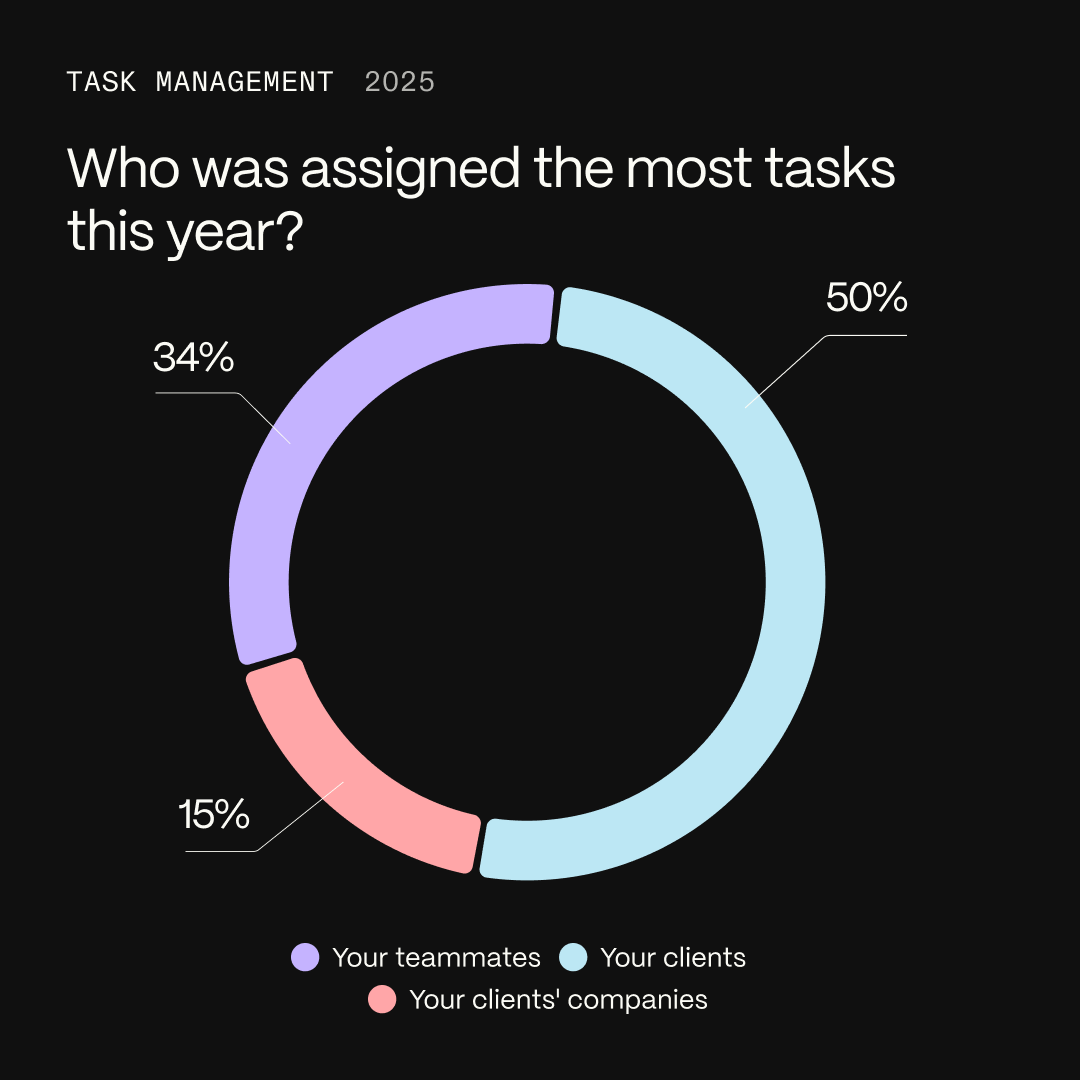
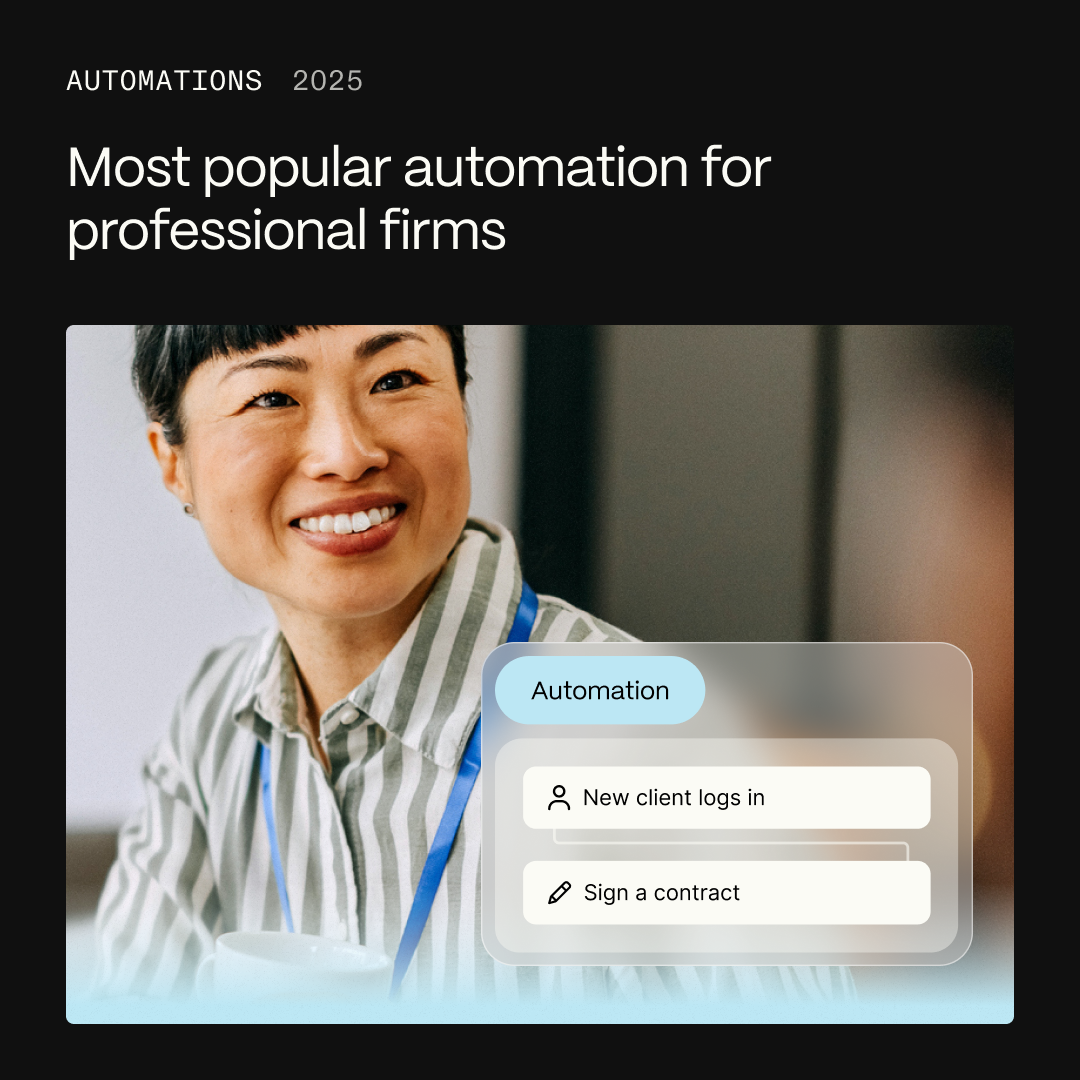
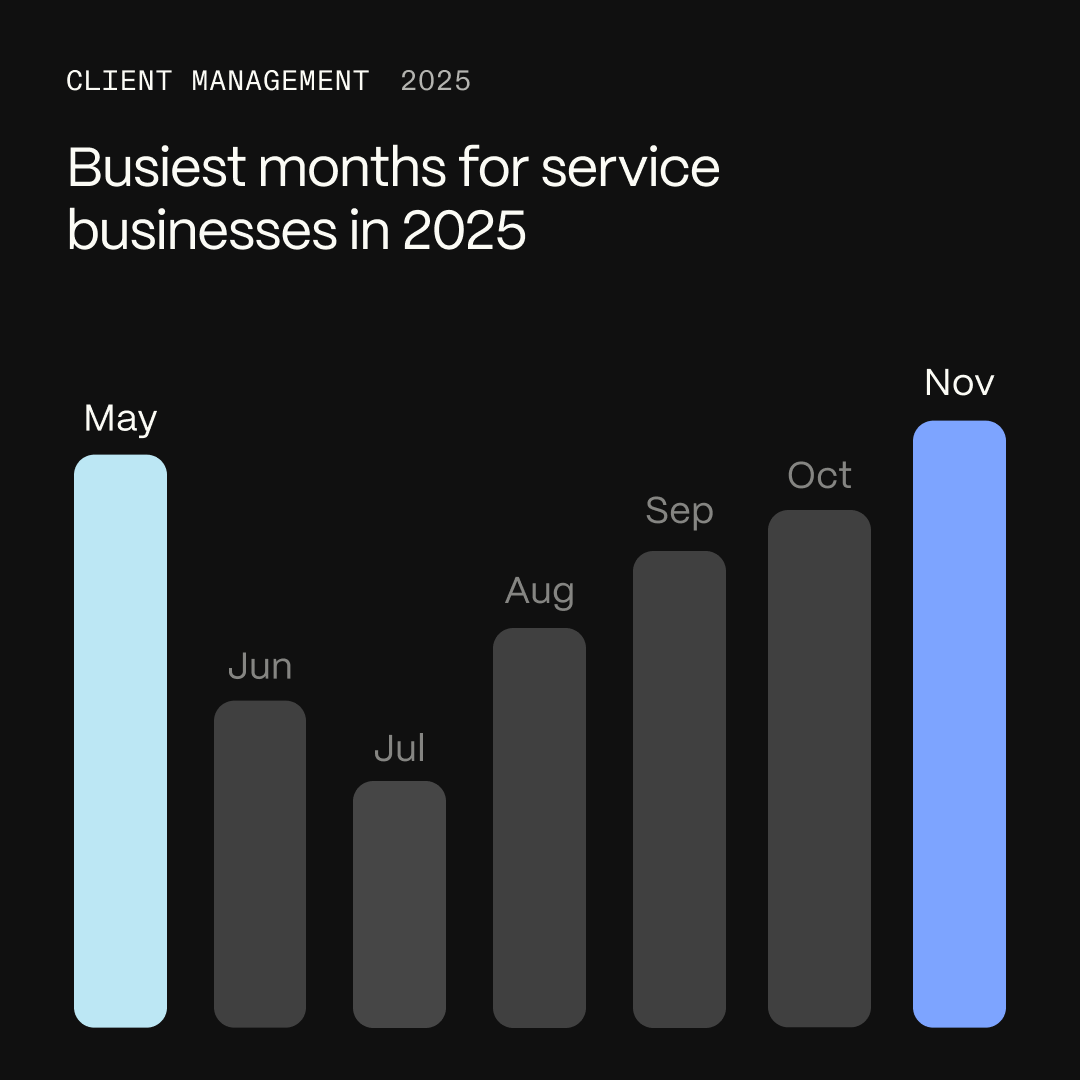
Here’s a snapshot of how you all are using Assembly in 2025—and what mattered most to you.
Thank you for your faith and trust in us as we've worked to grow and change the platform. We know there are still plenty of areas where we can make things even more flexible, customizable, and useful for you and your clients, but I hope your interactions with me and our team prove that we're as committed as you are to a great customer experience.
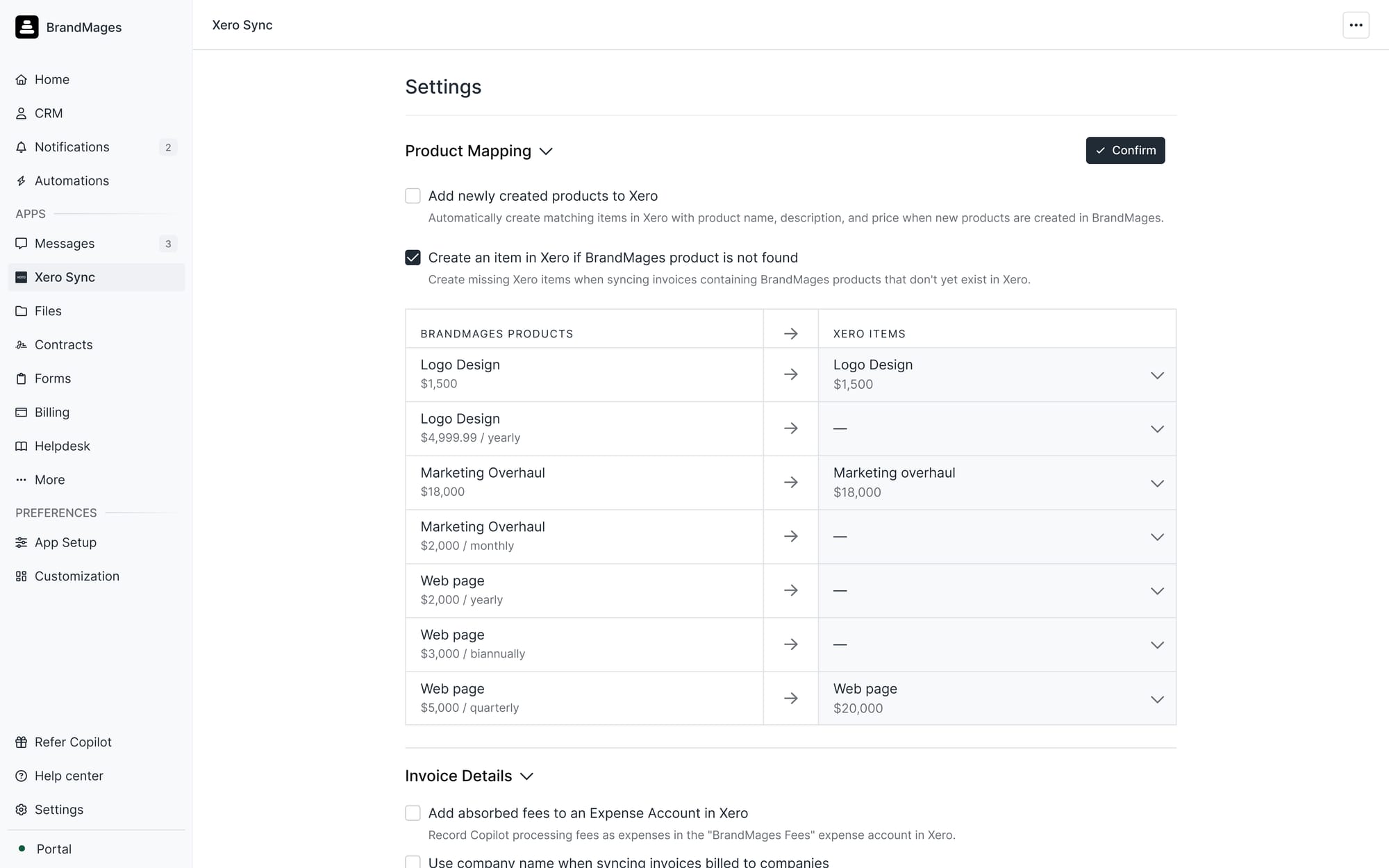
Earlier this year, we released a new and improved QuickBooks integration that let you map products from Assembly into QuickBooks. We’re excited to bring the same functionality to US customers the small business accounting software, Xero.
How it works:
Map Assembly products directly to existing Xero items. If you don’t have a matching Xero item, we’ll automatically create one for you.*
Sync invoice statuses (paid, voided, deleted) and invoice numbers directly with Xero,
Sync tax information with Xero
Download a CSV audit log of the sync history.
Sync absorbed fees to an automatically created Assembly Processing Fees expense account in Xero.
*Note: like the QuickBooks integration, this is a one-way sync from Assembly to Xero. New items created only in Xero will not automatically appear in Assembly. You can always create corresponding products in Assembly after and map them with this sync. The Xero integration also current only supports business billing in the US for now, but we plan to roll it out to international billing features in 2026.
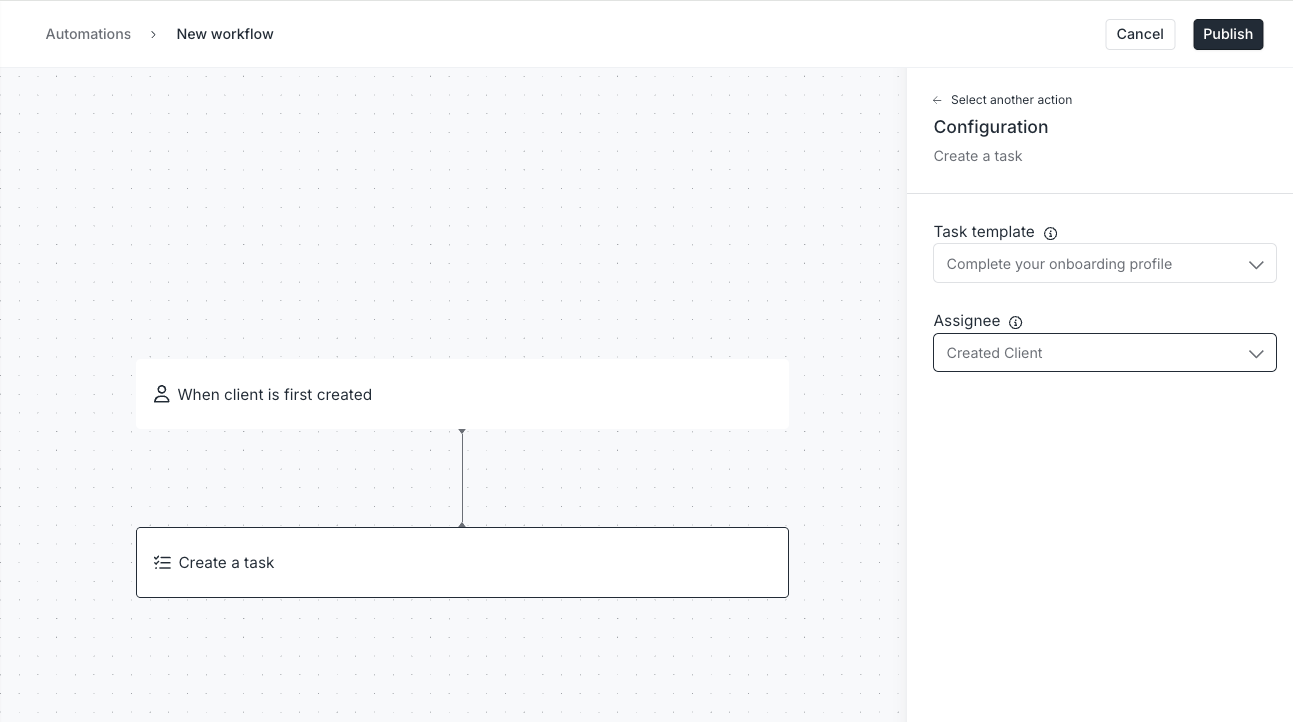
You can now automatically create tasks for clients and team members based on your task templates and schedule automations once your clients complete a task. We know many people have been looking for this built-in functionality around the Tasks App, and we’re pleased to finally be able to deliver this.
New Action: Create Task
You can now automatically create tasks from task templates and assign them to clients or your teammates (internal users) based on certain triggers.
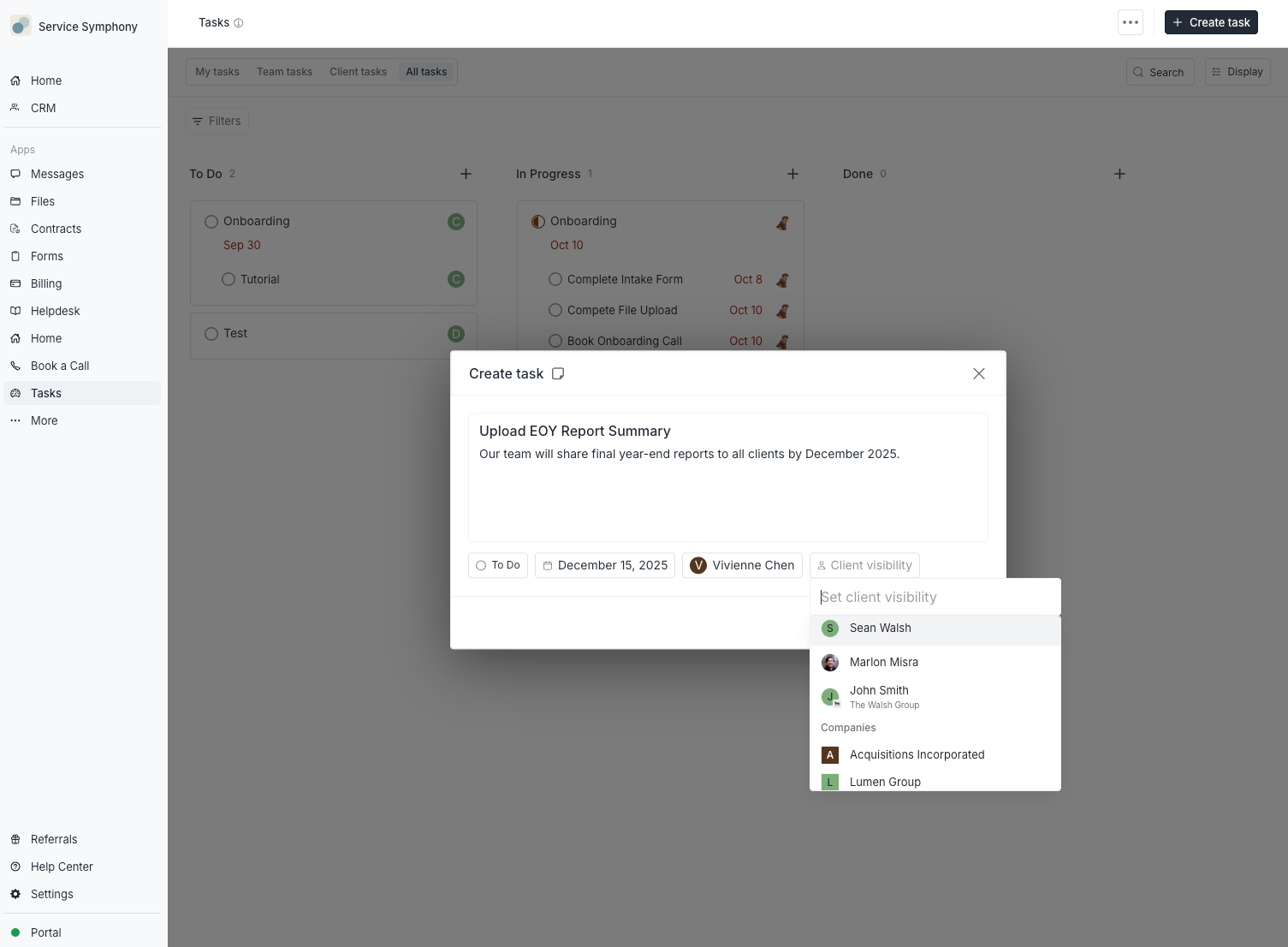
Client Visibility: When the assignee is one of your internal users, you can optionally choose to add the relevant client or company as a follower of the task via the “Client Visibility” field.
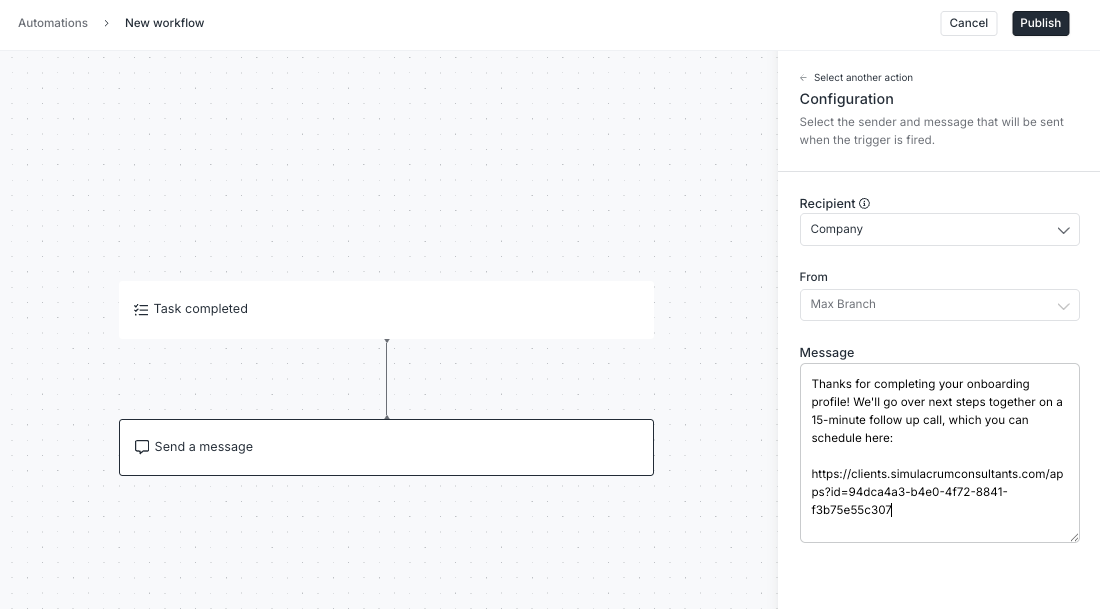
New Trigger: When a task is completed
You can now trigger automations to send your clients messages, forms, contracts, and other follow ups after they complete a task.
Coming in 2026: Recurring tasks based on a schedule
Next year, we’re going to release a time-based automation trigger that will enable you to schedule recurring actions (like tasks) on a regular time interval, such as daily, weekly, monthly, etc.
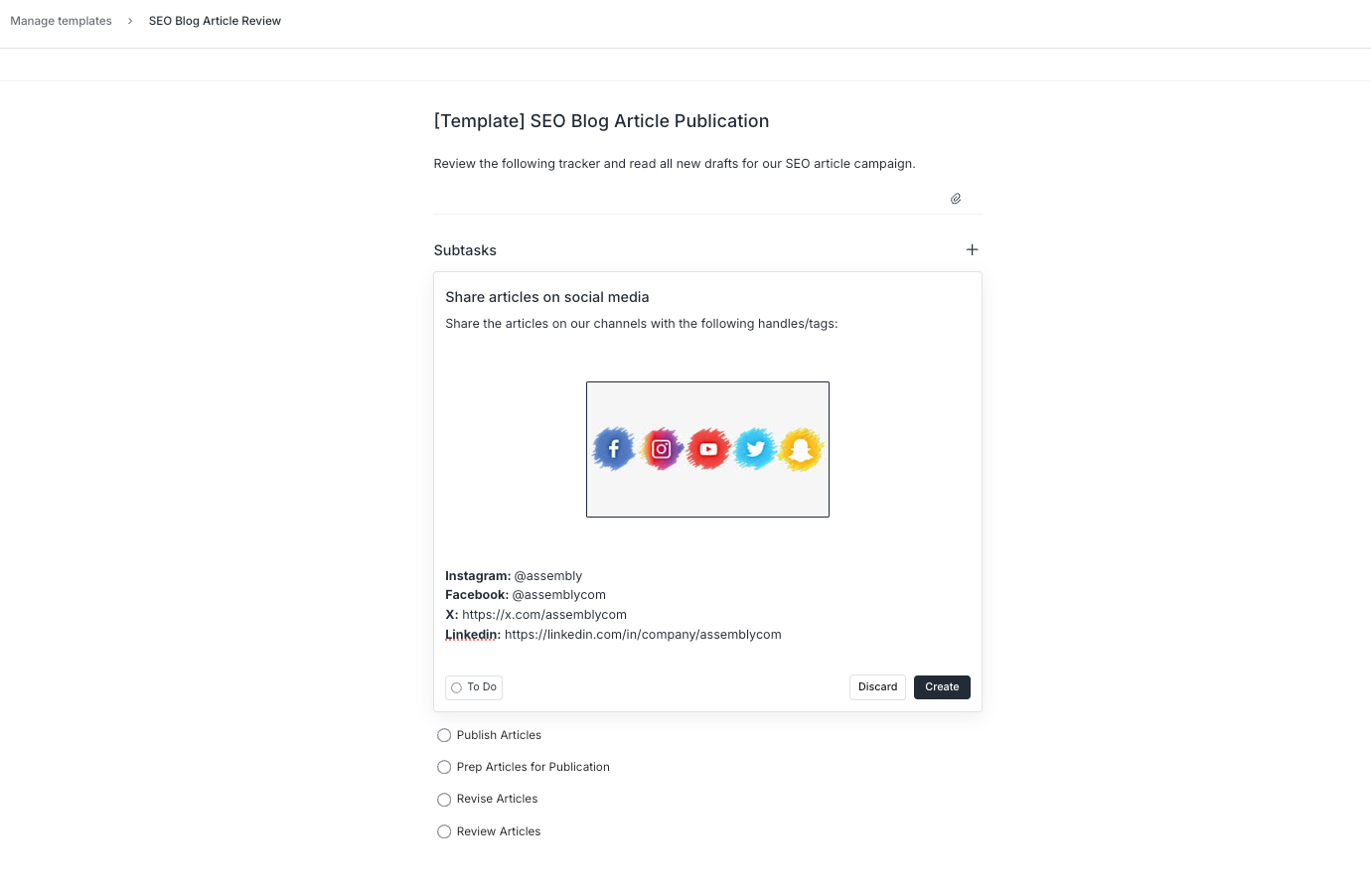
Subtasks in Task Templates
You can now add your subtasks to your task templates and use them in automations or create tasks from these templates.
After creating a task from a template, you can assign the subtasks to clients or team members (with client visibility optional). Automations based on task templates will create the subtasks, but for now, you will need to set subtask assignees after.
3 new interactions with company custom fields
We’ve rolled out more ways to use custom fields on companies to create a customized and automated experience for you and your clients. Starting today, you can:
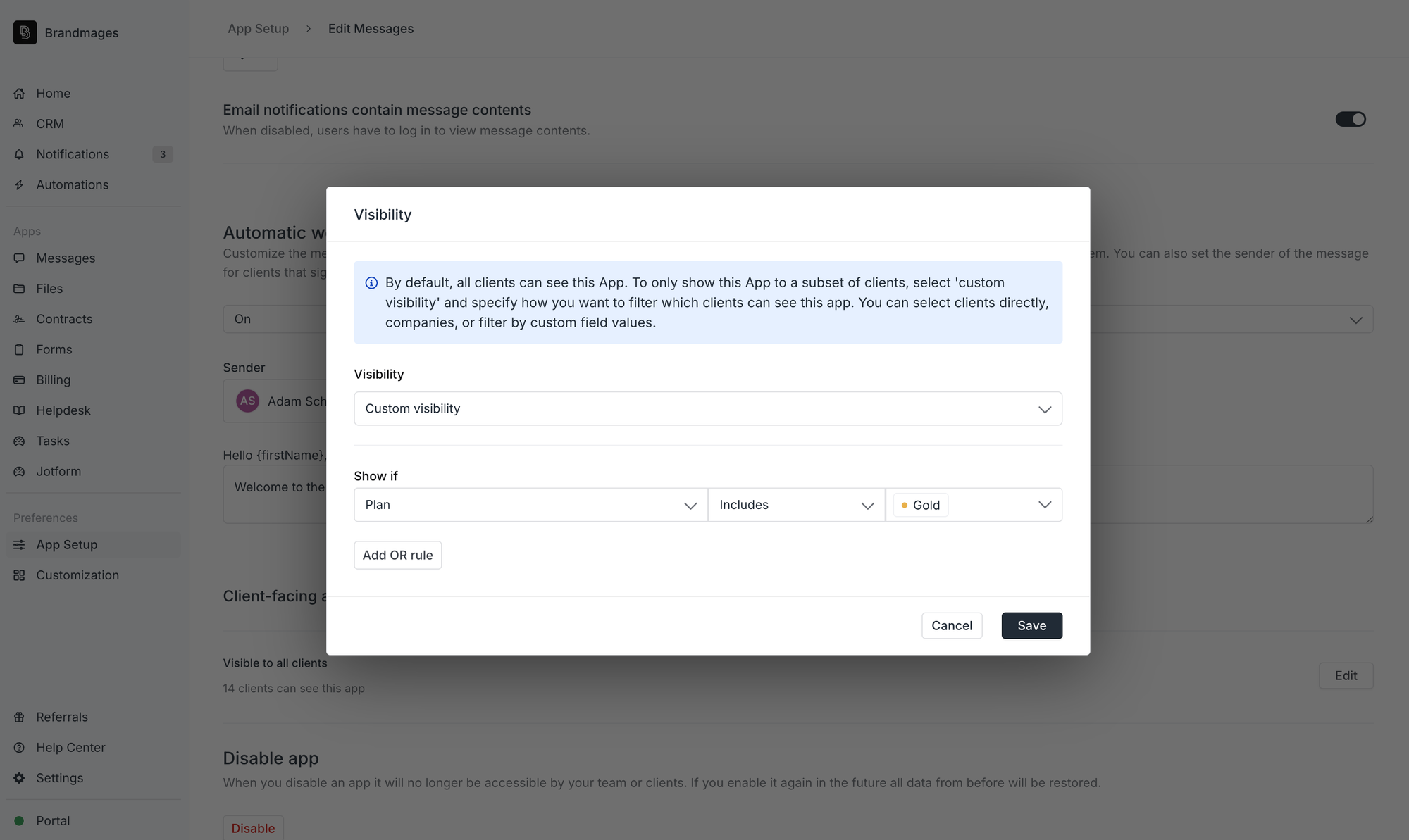
Set app visibility rules based on company custom field tags
Previously, you could decide which apps and embeds were visible to individual clients depending on custom field tags. You can now set app visibility rules on a company level, using company custom fields.
For example:
You have a company custom field (type = Tag) called “Plan” with options for Gold, Silver, Bronze. Your companies subscribe to a certain tier of service.
Your Gold tier companies receive access to on-demand communication with your team via the Messages App.
You set the Messages App’s visibility show only to companies where their Plan tag is “Gold.”
(Bonus points: you sell your Gold plan packaged services using Assembly’s recurring products or Store so that clients can self-serve purchase your offering!)
Automate actions with company custom field tags
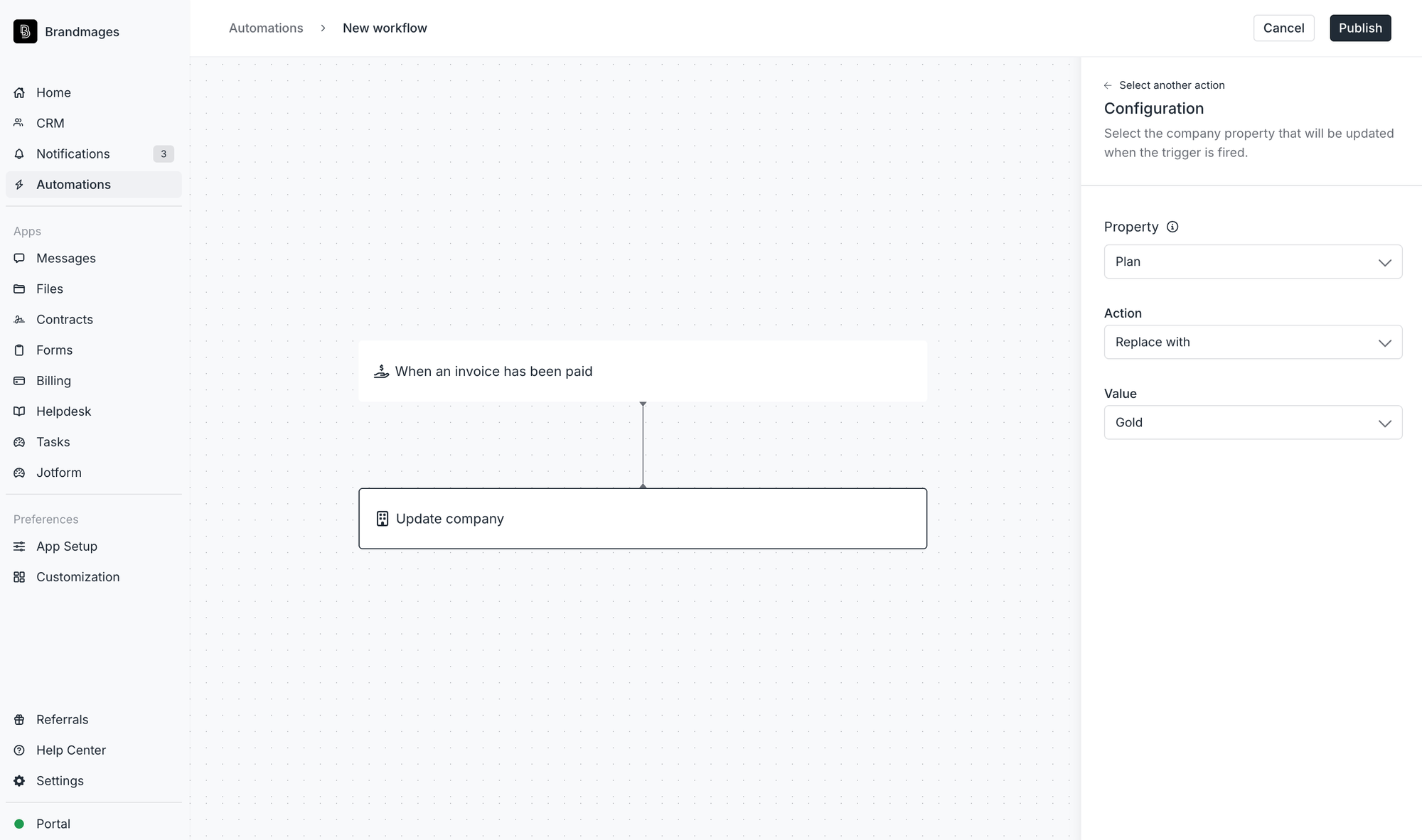
New Action: Update company
You can now automatically change tags for a company based on certain automation triggers.
Examples:
When a customer pays for a Gold tier membership (via invoice, Store purchase, or payment link) → Update company custom field property “Plan” to “Gold.”
When your client signs an “Enterprise Agreement” Contract → Update company custom field property “Company Stage” to “Enterprise.”
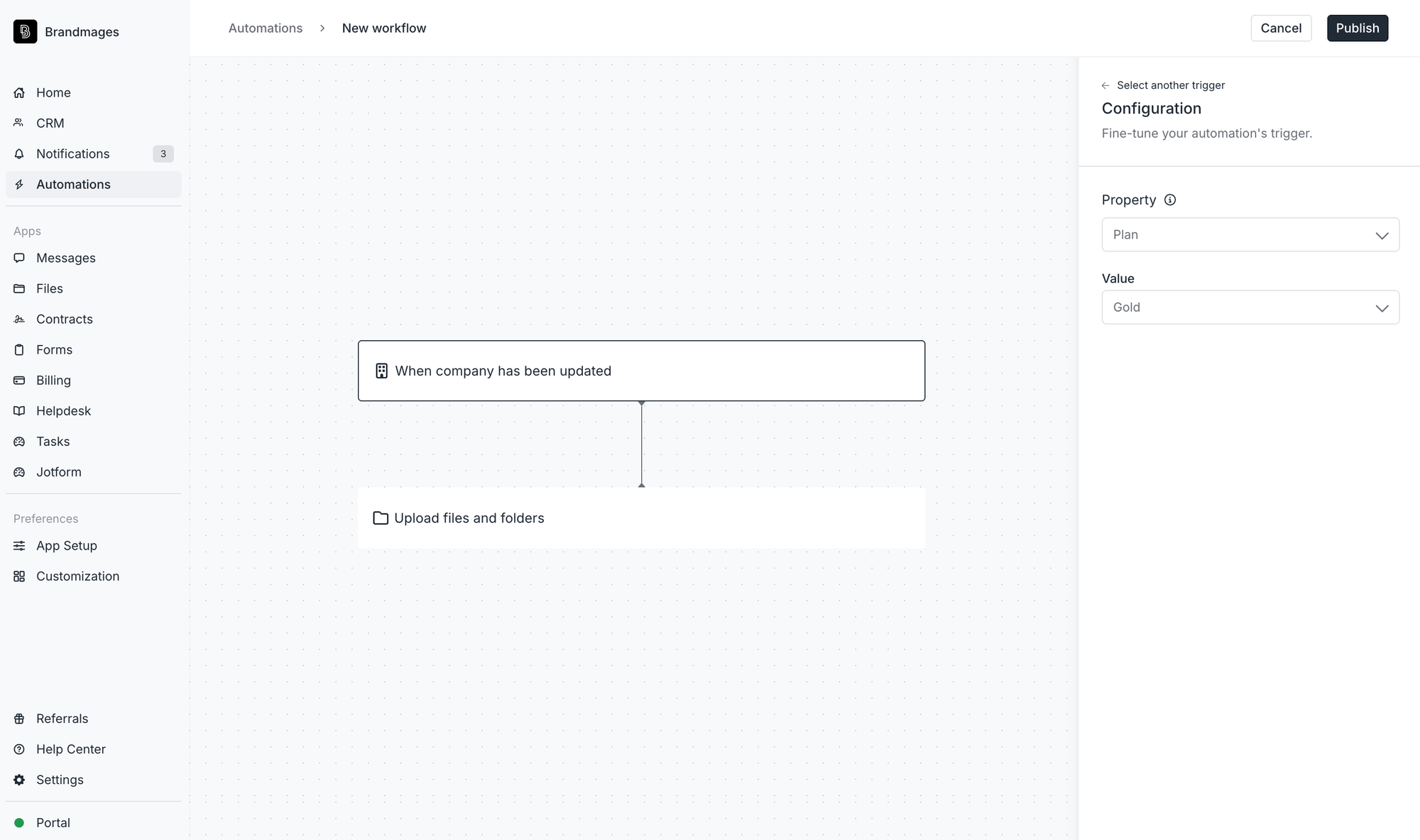
New Trigger: When a company is updated
Whenever a company’s custom field tag is added, modified, or removed, you can trigger an automation to streamline your operations.
Examples:
When a company is updated to Enterprise, upload files into an “Enterprise” folder in their Files App.
When a company is updated to Gold, send a custom message in the Messages App saying: “Welcome to your Gold Tier membership…” and outlining new benefits.
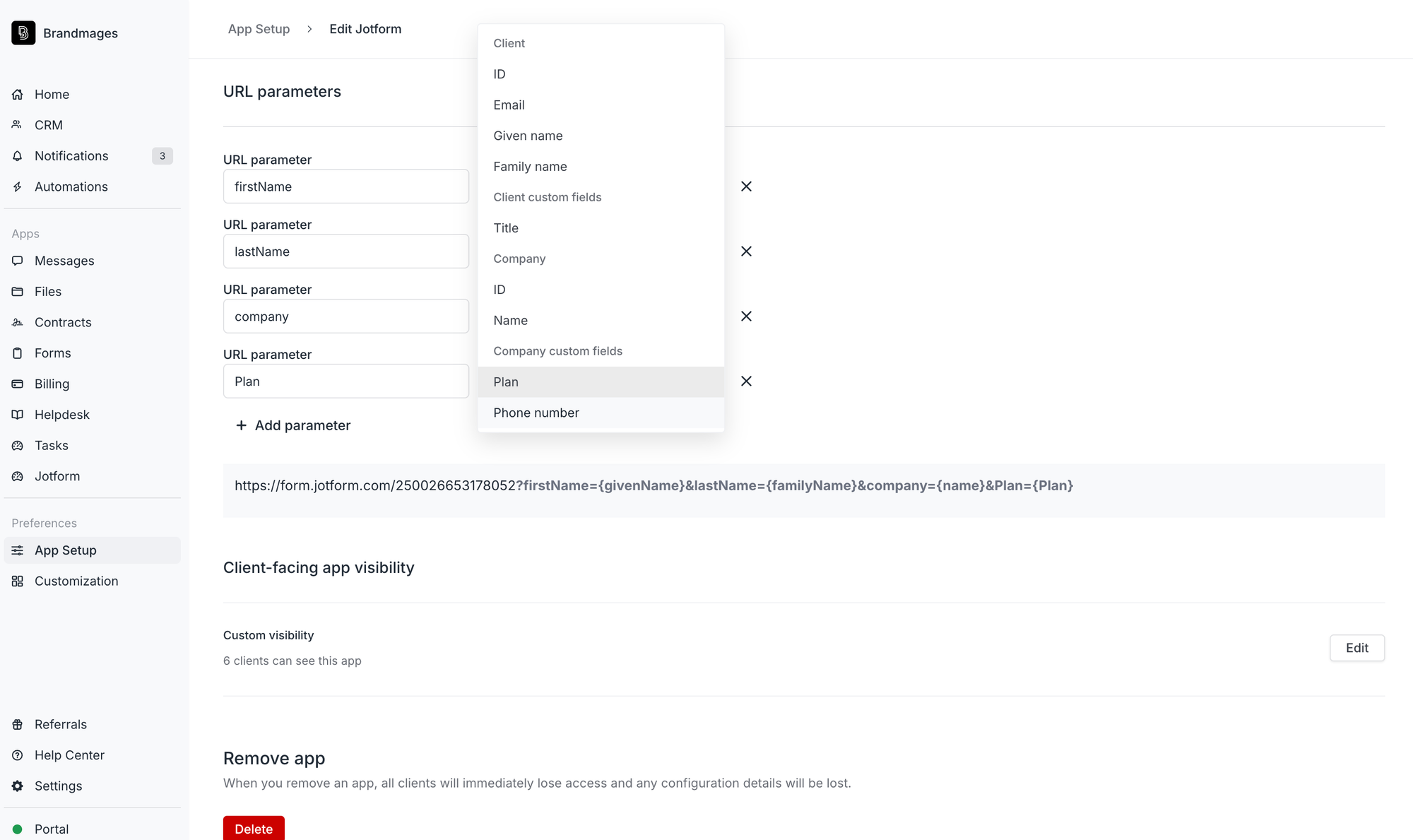
Use company custom fields in URL parameters
Before today, your embedded apps could pass a client’s custom fields as URL parameters. This is useful for passing information from these fields to external tools to save your clients time. We’ve now expanded this functionality to support company custom fields in URL parameters.
An example of how to use URL parameters to save clients time:
You can pre-populate any known company information into an embedded or externally linked form (like a Jotform) to save your customers time when filling it out details such as:
primary address
point-of-contact email
phone number
and any other custom fields you create.
Your feedback on these new features is appreciated! You can share your thoughts in our community forum.
Fall 2025 Edition
We’ve focused this month on making many smaller key improvements to our product to both enhance your clients’ experience and make your life easier. Read all the improvements we made on our blog.
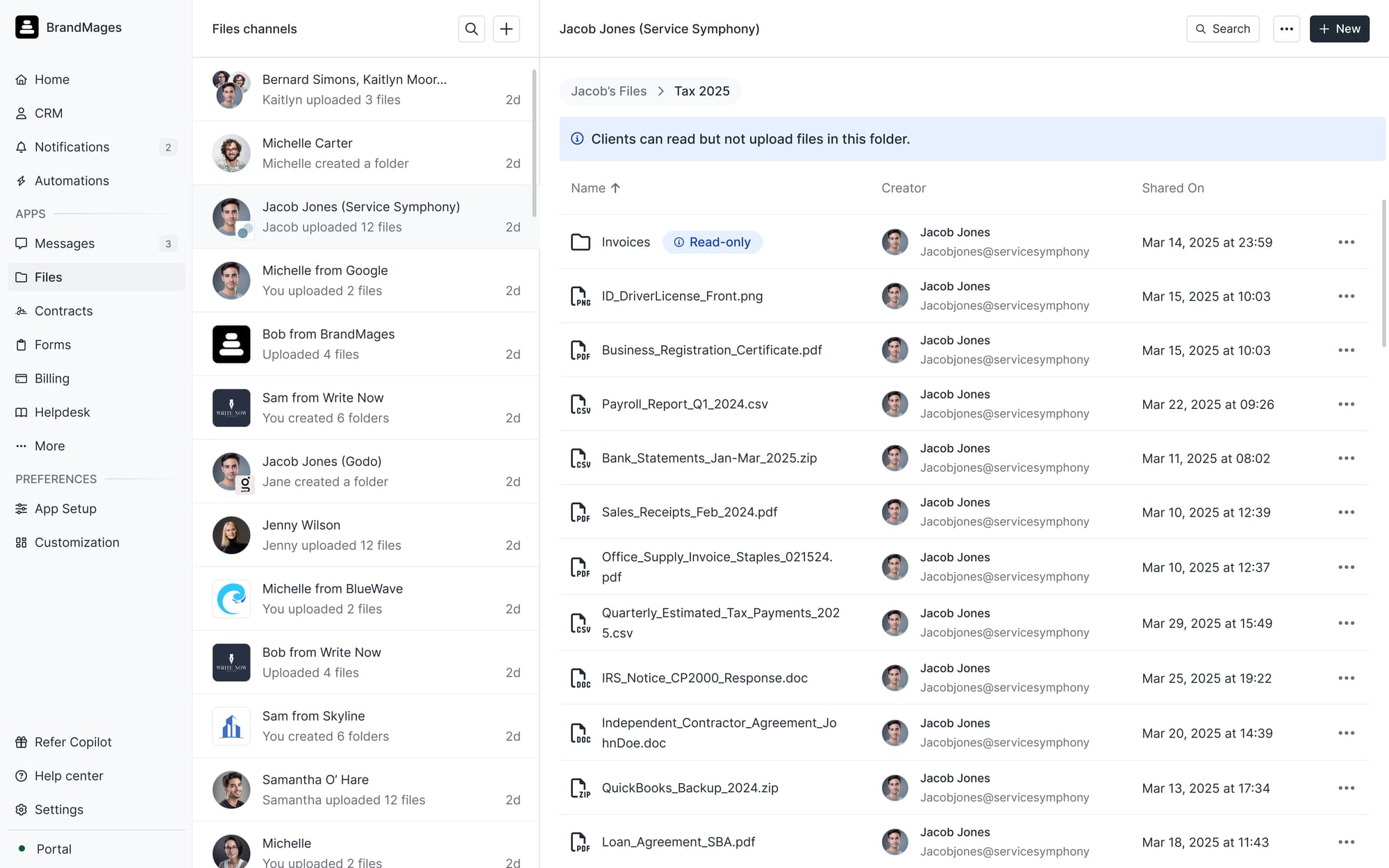
Folder locking in the Files App
Previously, you could globally configure the Files App to control whether clients can add files, delete files, or update folder structures. But what if you don’t want to set this globally? Now, you can lock a specific folder — only the contents within that folder are locked for clients. You can also selectively unlock subfolders within locked folders when you want clients to be able to add files to those folders.
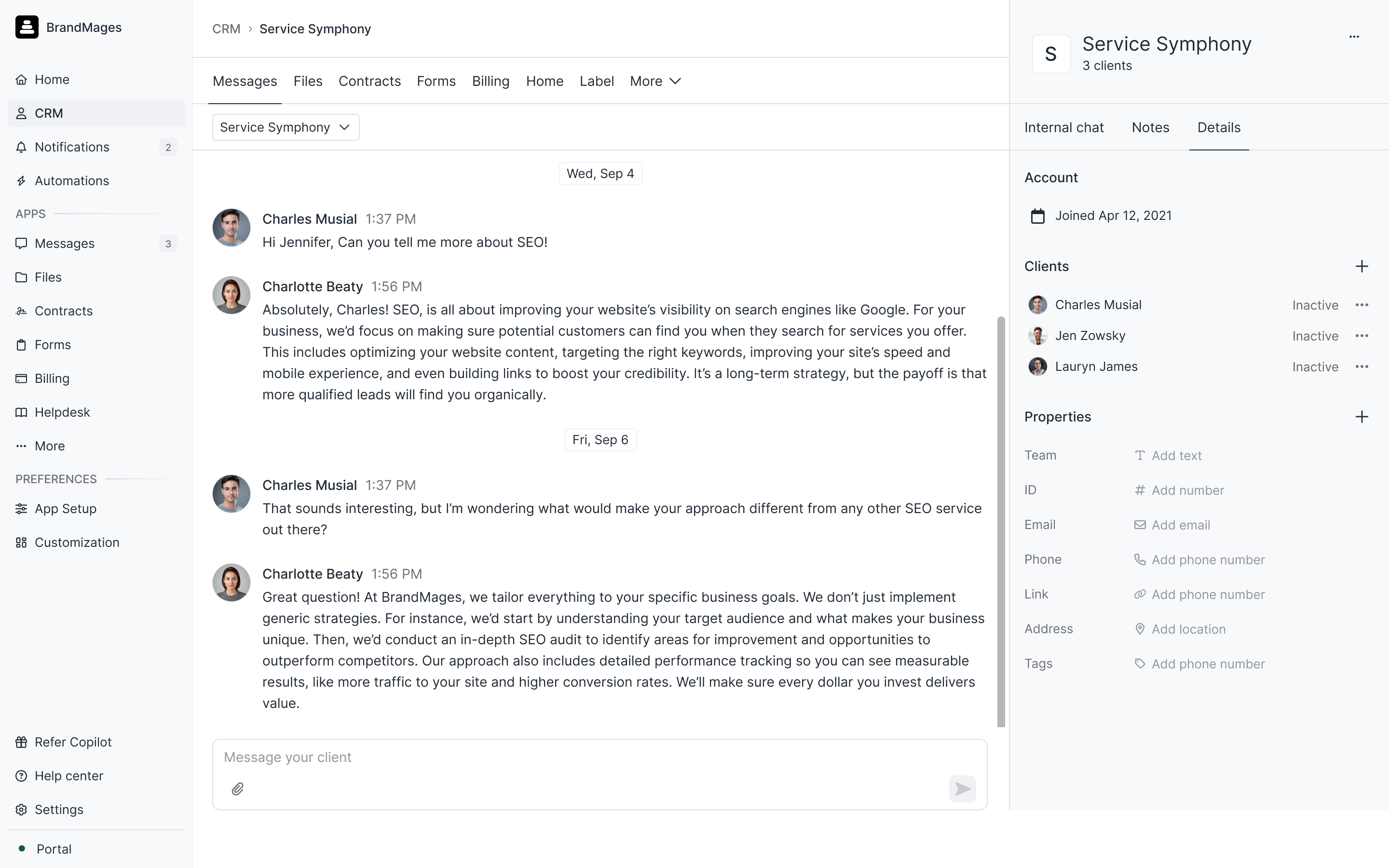
Company custom fields
Earlier this month we announced company custom fields, which work the same way as client custom fields. You can add the following types of custom fields to companies: phone number, email, URL, text, number, address, and tags. With this update, we’re also adding API, Zapier, and Make support for company custom fields, with full in-built automation support coming by the end of the year.
Client visibility in the Tasks App
Previously, you could assign tasks to an internal user, client, or company. The assignee determined who was responsible for the task. But what if a task needs to be completed by your teammate, but you want to give your clients visibility into progress? You can now do exactly that. When you create a task and assign it to an internal user, you can optionally add a client or company as a viewer to follow along with progress.
And 47 more quality improvements
Small fixes compound over time. The result is a faster, more reliable product for everyone. Read all the improvements we made on our blog.